
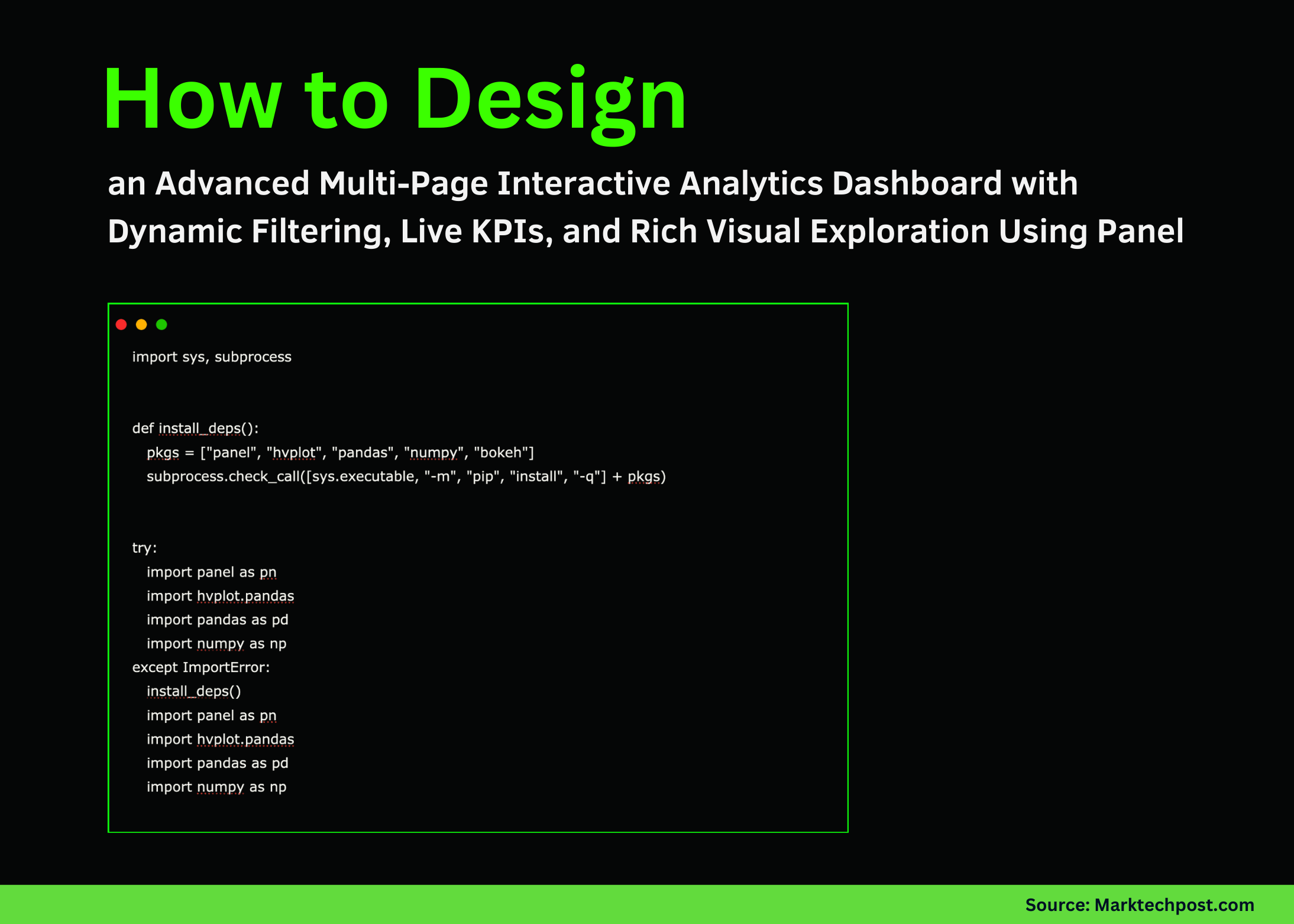
Creating a Sophisticated Multi-Page Interactive Dashboard with Panel and hvPlot
This guide walks you through the process of developing a comprehensive multi-page dashboard that offers dynamic data exploration and real-time KPI monitoring. We will cover generating synthetic datasets, implementing advanced filtering mechanisms, visualizing evolving time-series data, comparing performance across segments and regions, and simulating live metric updates. Each step is carefully explained to reveal how widgets, callbacks, and plotting functions integrate seamlessly to deliver a responsive and engaging analytics platform.
Setting Up the Environment and Generating Synthetic Data
To ensure smooth execution in environments like Google Colab, we begin by installing essential libraries such as panel, hvplot, pandas, numpy, and bokeh. These tools form the backbone of our dashboard’s interactivity and visualization capabilities.
Next, we create a synthetic dataset representing a full calendar year of daily data. This dataset spans multiple customer segments and geographic regions, providing a rich foundation for analysis. The data includes simulated traffic volumes, conversion counts, and revenue figures, incorporating seasonal trends and random noise to mimic real-world variability.
import sys, subprocess

def install_dependencies():
    packages = ["panel", "hvplot", "pandas", "numpy", "bokeh"]
    subprocess.check_call([sys.executable, "-m", "pip", "install", "-q"] + packages)

try:
    import panel as pn
    import hvplot.pandas
    import pandas as pd
    import numpy as np
except ImportError:
    install_dependencies()
    import panel as pn
    import hvplot.pandas
    import pandas as pd
    import numpy as np

pn.extension()

rng = np.random.default_rng(42)
dates = pd.date_range("2024-01-01", periods=365, freq="D")
segments = ["Alpha", "Beta", "Gamma"]
regions = ["North", "South", "East", "West"]

data = pd.DataFrame({
    "date": np.tile(dates, len(segments) * len(regions)),
    "segment": np.repeat(segments, len(dates) * len(regions)),
    "region": np.repeat(np.tile(regions, len(segments)), len(dates)),
})

data["traffic"] = (
    120
    + 50 * np.sin(2 * np.pi * data["date"].dt.dayofyear / 365)
    + rng.normal(0, 20, len(data))
)
segment_trends = {"Alpha": 1.2, "Beta": 1.7, "Gamma": 2.3}
data["traffic"] *= data["segment"].map(segment_trends)
data["conversions"] = (data["traffic"] * rng.uniform(0.015, 0.06, len(data))).astype(int)
data["revenue"] = data["conversions"] * rng.uniform(25, 70, len(data))
df = data.reset_index(drop=True)
By the end of this setup, we have a clean, structured DataFrame ready for visualization and interaction.
Interactive Controls and Dynamic Filtering Logic
We introduce a suite of interactive widgets that empower users to filter data by segment, region, metric type, date range, and smoothing window size. These controls are linked to the dashboard’s visual components through reactive dependencies, enabling instantaneous updates as selections change.
segment_selector = pn.widgets.CheckBoxGroup(name="Segments", value=segments[:2], options=segments, inline=True)
region_selector = pn.widgets.MultiChoice(name="Regions", value=["North"], options=regions)
metric_selector = pn.widgets.Select(name="Metric", value="traffic", options=["traffic", "conversions", "revenue"])
date_slider = pn.widgets.DateRangeSlider(
    name="Date Range",
    start=df["date"].min(),
    end=df["date"].max(),
    value=(df["date"].min(), df["date"].max()),
)
rolling_window_slider = pn.widgets.IntSlider(name="Smoothing Window (days)", start=1, end=30, value=7)

def get_filtered_data(selected_segments, selected_regions, date_range):
    start_date, end_date = date_range
    mask = (
        df["segment"].isin(selected_segments) &
        df["region"].isin(selected_regions or regions) &
        (df["date"] >= start_date) &
        (df["date"]  1:
        smoothed_line = daily_totals.rolling(window).mean().hvplot.line(line_width=3, alpha=0.6)
        return (base_line * smoothed_line).opts(legend_position="top_left")
    return base_line
This setup allows users to seamlessly explore different slices of the data and observe trends with or without smoothing applied.
Additional Visual Insights: Segment Bar Charts and Regional Heatmaps
To deepen analytical insights, we add two complementary visualizations: a bar chart summarizing metrics by segment and a heatmap illustrating metric distribution across segments and regions. Both charts respond dynamically to the global filters, ensuring consistent and synchronized data views.
@pn.depends(segment_selector, region_selector, metric_selector, date_slider)
def segment_metric_bar_chart(segments, regions, metric, date_range):
    data = get_filtered_data(segments, regions, date_range)
    if data.empty:
        return pn.pane.Markdown("### No data to display.")
    aggregated = data.groupby("segment")[metric].sum().sort_values(ascending=False)
    return aggregated.hvplot.bar(title=f"{metric.capitalize()} by Segment", yaxis=None)

@pn.depends(segment_selector, region_selector, metric_selector, date_slider)
def regional_metric_heatmap(segments, regions, metric, date_range):
    data = get_filtered_data(segments, regions, date_range)
    if data.empty:
        return pn.pane.Markdown("### No data to display.")
    pivot_table = data.pivot_table(index="segment", columns="region", values=metric, aggfunc="sum")
    return pivot_table.hvplot.heatmap(title=f"{metric.capitalize()} Heatmap", clabel=metric.capitalize())
These visual layers provide a granular breakdown of performance, facilitating targeted analysis across different business dimensions.
Simulating Real-Time KPI Updates for a Live Dashboard Feel
To emulate a live monitoring environment, we implement a rolling window KPI updater that refreshes key metrics every second. This simulation calculates total revenue, average conversions, and conversion rate over a sliding data window, updating numeric indicators in real time.
kpi_data_source = df.copy()
current_index = [0]

def calculate_kpis(data_slice):
    if data_slice.empty:
        return 0, 0, 0
    total_revenue = data_slice["revenue"].sum()
    average_conversions = data_slice["conversions"].mean()
    conversion_rate = (data_slice["conversions"].sum() / data_slice["traffic"].sum()) * 100
    return total_revenue, average_conversions, conversion_rate

total_revenue_indicator = pn.indicators.Number(name="Total Revenue (Rolling Window)", value=0, format="$0,0")
average_conversions_indicator = pn.indicators.Number(name="Average Conversions", value=0, format="0.0")
conversion_rate_indicator = pn.indicators.Number(name="Conversion Rate", value=0, format="0.00%")

def refresh_kpis():
    window_size = 200
    start = current_index[0]
    end = start + window_size
    if start >= len(kpi_data_source):
        current_index[0] = 0
        start, end = 0, window_size
    window_data = kpi_data_source.iloc[start:end]
    current_index[0] = end
    total_rev, avg_conv, conv_rate = calculate_kpis(window_data)
    total_revenue_indicator.value = total_rev
    average_conversions_indicator.value = avg_conv
    conversion_rate_indicator.value = conv_rate / 100

pn.state.add_periodic_callback(refresh_kpis, period=1000, start=True)
This feature brings a dynamic, continuously updating element to the dashboard, closely resembling operational analytics tools used in industry.
Organizing the Dashboard into a User-Friendly Multi-Page Layout
Finally, we assemble all components into a polished, tabbed interface that separates the dashboard into three distinct pages: an overview with time-series visualizations, an insights page featuring segment and region analyses, and a live KPI monitoring page. This structure enhances usability and allows users to navigate effortlessly between different analytical perspectives.
control_panel = pn.WidgetBox(
    "### Global Filters",
    segment_selector,
    region_selector,
    metric_selector,
    date_slider,
    rolling_window_slider,
    sizing_mode="stretch_width",
)

overview_tab = pn.Column(
    pn.pane.Markdown("## Time Series Overview"),
    control_panel,
    plot_time_series,
)

insights_tab = pn.Column(
    pn.pane.Markdown("## Segment and Regional Insights"),
    pn.Row(segment_metric_bar_chart, regional_metric_heatmap),
)

live_kpi_tab = pn.Column(
    pn.pane.Markdown("## Live KPI Dashboard (Simulated)"),
    pn.Row(total_revenue_indicator, average_conversions_indicator, conversion_rate_indicator),
)

dashboard_app = pn.Tabs(
    ("Overview", overview_tab),
    ("Insights", insights_tab),
    ("Live KPIs", live_kpi_tab),
)

dashboard_app
This modular design ensures a clean, intuitive user experience, making the dashboard suitable for deployment in collaborative environments or as a foundation for production-grade analytics solutions.
Summary
Through this tutorial, we demonstrated how to leverage Panel’s widget system, hvPlot’s flexible plotting, and Python’s data manipulation libraries to build a sophisticated, interactive analytics dashboard. The integration of real-time KPI simulation, multi-dimensional filtering, and multi-page navigation showcases a powerful approach to creating engaging data applications. This framework can be extended to incorporate live data sources, advanced machine learning insights, or customized reporting features, making it a versatile tool for data professionals.