Image Credit: Chris Hoffman Foundry
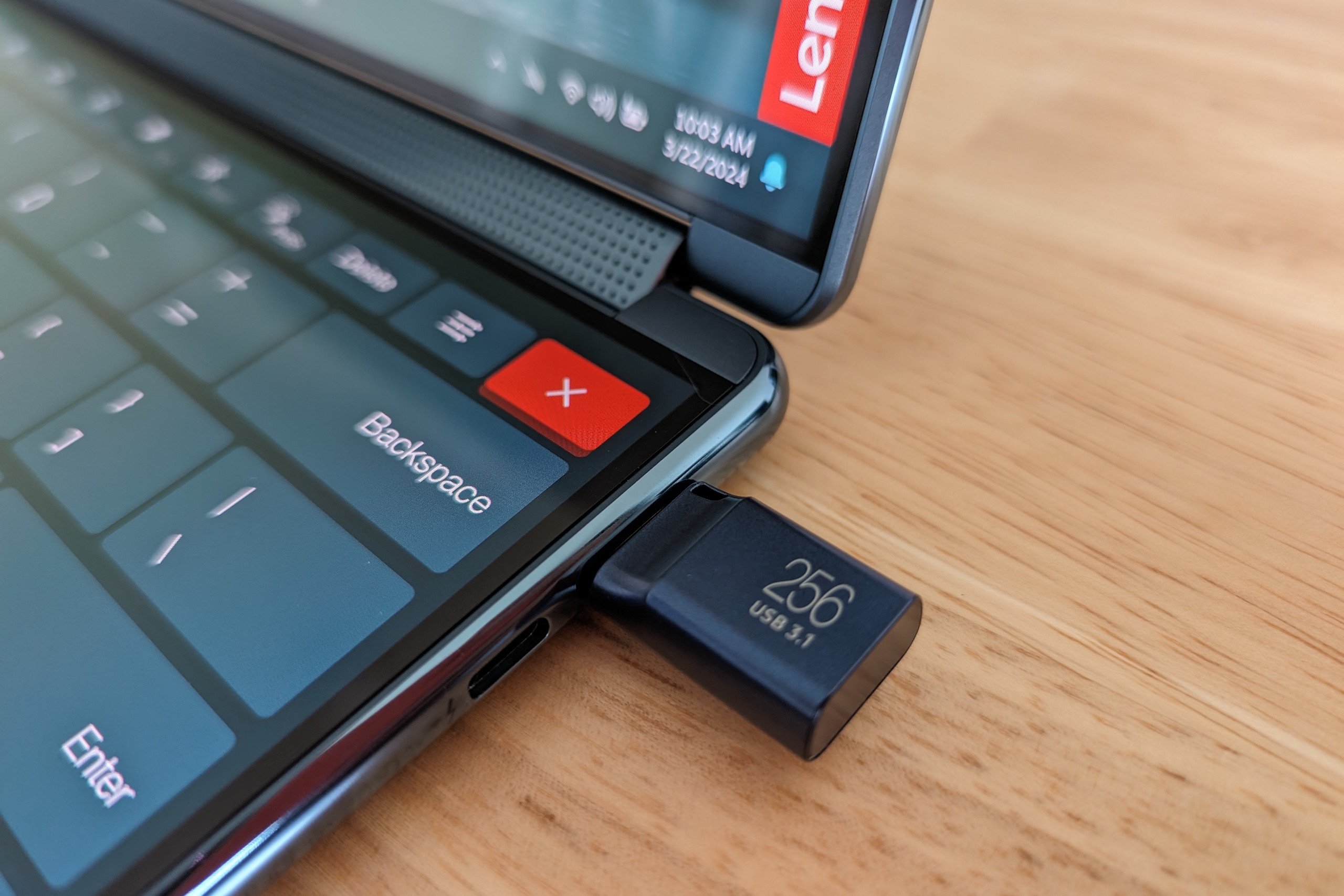
For retro gaming enthusiasts seeking ultra-portable setups, the Raspberry Pi 5 running Linux is often the go-to solution. However, there’s an even more compact and lightweight alternative: transforming a USB flash drive into a fully functional portable gaming console. While you’ll still need access to a PC to play, this method drastically reduces the bulk of your gaming gear, all for under $100.
Essential Gear for Your Portable Gaming Flash Drive
- USB Flash Drive: A high-capacity drive like the SanDisk 512GB works well, but smaller sizes can also suffice depending on your game library.
- Compact Wireless Keyboard: Affordable mini keyboards with built-in USB storage compartments are available for around $10, perfect for controlling your setup on the go.
- Game Controller: The 8BitDo Pro 2 is highly recommended by USB gamers for its USB-C compatibility and ergonomic design, ensuring seamless connection to your PC.
Step-by-Step Guide to Setting Up Your Gaming Flash Drive
1. Flash the Batocera OS onto Your USB Drive
Batocera is an open-source operating system tailored for retro gaming emulation. To prepare your flash drive:
- Insert your USB flash drive into your computer.
- Visit the Batocera official site and download the Windows x64 version of the OS.
- Download and install BalenaEtcher, a reliable tool for flashing OS images.
- Launch BalenaEtcher, select the Batocera image file, choose your USB drive as the target, and initiate the flashing process.
- After completion, dismiss any pop-up notifications by selecting “Cancel” or “Ignore.”
2. Boot Your PC from the USB Flash Drive
To start Batocera from your flash drive, you may need to adjust your PC’s boot options:
- Method A: Open Windows Start, search for “Recovery options,” then under Advanced Startup, click “Restart now.” Choose “Use a device” and select your USB drive to boot.
- Method B: If Method A doesn’t work, reboot your PC and press F12 (or the key specific to your system) to access the BIOS boot menu. Select your USB flash drive from the list to launch Batocera.
3. Adding Games to Batocera
Batocera supports a wide array of emulators, including those for Nintendo 3DS, PlayStation 2, and PlayStation 3, among others. While it includes a few free, legal ROMs, you’ll likely want to add your own collection:
- Press F1 within Batocera to open the file manager.
- Locate your ROM files on your PC or connect an external drive containing them.
- Select the desired ROM files, right-click, and copy them.
- Navigate to the appropriate emulator folder under the “ROMs” directory and paste your games there.
- Games will now appear in Batocera’s menu, though some may lack cover art.
- To fetch artwork, highlight a game, hold the controller’s X button, and select “Scrape” while connected to the internet.
Note: Ensure you legally own all ROMs you use, as unauthorized downloading is illegal.
4. Optimizing Your Experience
While a mid-range PC can run most games smoothly at around 60fps, fine-tuning video settings per emulator can enhance visuals. Exploring tutorial videos on platforms like YouTube-channels dedicated to Batocera tutorials are especially helpful-can provide valuable insights on configuration and troubleshooting.
Additional Tips and Alternatives
Instead of a USB flash drive, you can also use an SD card or a portable external hard drive for this setup. However, USB flash drives strike a good balance between size and capacity, making them ideal for portability.
For those new to Batocera, investing time in learning the OS’s features will pay off, especially when adjusting emulator-specific settings to maximize game performance and appearance.
Enjoy your compact, budget-friendly retro gaming rig wherever you go!